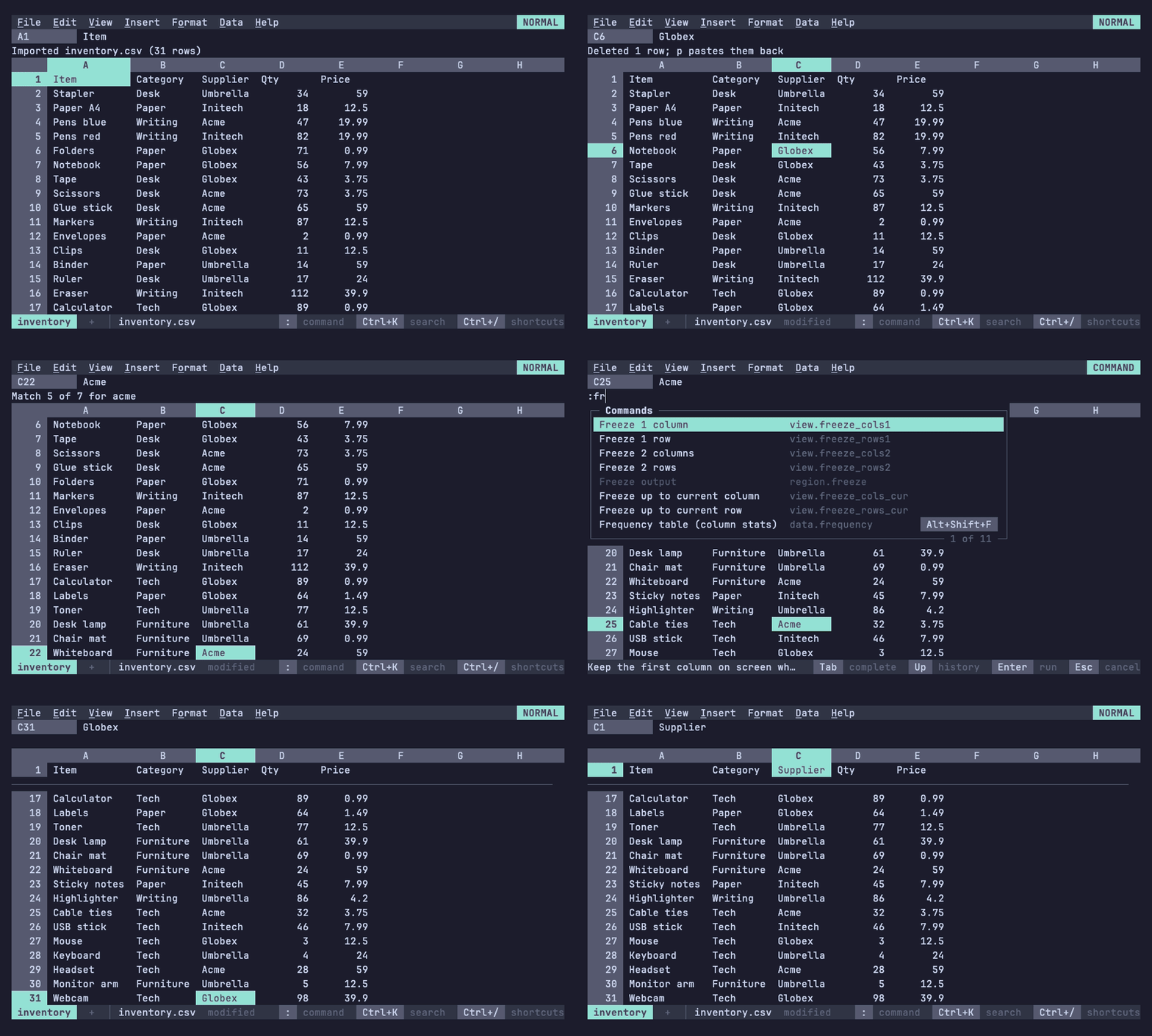
Inside the grid, 012 behaves like Google Sheets: if you know a Sheets
shortcut, try it. Every command is also in the menus (F10 or Alt+letter)
and the command palette (Ctrl+K), which show each command's key. F1 or
Ctrl+/ lists every binding, generated from the table the app uses, so it
never drifts from what the keys do. This page is the same list with the
mouse and the vim keymap added.
Moving around
Key
Action
Arrows
Move one cell
Ctrl+arrows, End
Jump to the edge of the data (End: rightwards)
Tab, Shift+Tab
Right, left
PgUp, PgDn
A screen up, down
Alt+PgUp, Alt+PgDn
A screen left, right
Home, Ctrl+Home, Ctrl+End
Column A, cell A1, the last used cell
Ctrl+G, F5
Go to a cell, a range, a named range, a table or a region's table (r1 or nu.r1), on any sheet (Sheet2!B3)
Entering data
Key
Action
Type
Replace the cell: = starts a formula, ' forces text, and $1,200, 12%, 9/26/2026 or 14:30 are numbers that keep their format (Formulas)
Enter, Tab
Accept and move down or right; Enter goes back to the column a run of Tabs began in
Enter, F2, double-click
Edit the cell
Esc
Cancel the entry
Ctrl+Enter
Enter the same entry in every selected cell
Arrows, Shift+arrows
While typing a formula, after an operator: point at a cell, or a range
F4
While typing a formula: cycle the reference at the caret through A1, $A$1, A$1, $A1
Ctrl+Left, Ctrl+Right (Option+arrows on macOS; Alt+arrows outside a cell)
While editing any text: move by word; in ENTER mode Ctrl+arrows commit and jump, as arrows do
Open the active cell's dropdown (type to search, Enter picks); elsewhere, with a filter on (Data > Create a filter), the column's filter (Space checks values, type to search, or pick a condition)
Trace precedents, dependents: highlight the cells a formula reads, or the formulas that read the cell, and jump to the first; again for the next, Esc to go back (Excel's Ctrl+[ and Ctrl+], which terminals send as Esc)
Tools with no key of their own have their keys on screen while they're
open, and in their docs: sorting by several columns
(Freeze, sort and filter), conditional formatting and data validation
(rules panel), pivot tables
(pivot editor), protected ranges
(Notes and protection), charts
(Charts) and linked files (Data > Linked file, where
Enter keeps every row and L the last ones:
Following files). In Data > Named ranges, Enter goes to a
range, F2 renames or repoints it and Ctrl+D deletes it; in Data > Table >
Tables, Enter goes to a table, F2 renames it and Ctrl+D removes it,
keeping its cells.
Files, menus and help
Key
Action
Ctrl+S, Ctrl+O, Ctrl+Q
Save, open (and import other formats), quit; with 012 --pipe, quitting asks what to send, or sends what --send chose (Pipelines)
Keyboard shortcuts; F1 on a cell showing an error, or on a linked source's tab that can't be read, explains it in full (Values and errors)
In a workbook shared over 012 serve, File > Who's here (or who in the
palette) lists the others and goes to one's cell, and File > Hand over
writing passes writing on in a one-writer room; neither has a key of
its own (Sharing a workbook).
Stop a macro while it runs (the mode indicator says CMD)
Linked sources
On a linked source's tab (SOURCE) the
keys move and scroll as on a sheet, over every row of the source; Ctrl+G
and F5 go to a row, the sort and filter keys order the rows the tab
shows, and keys that would change cells say the tab is read-only.
Notebooks
On a notebook's tab, as in Jupyter:
command mode (NOTEBOOK) acts on cells, edit mode (EDIT) types into
one. Data > Shell > Open notebook opens the workbook's notebook;
on a sheet, ! starts an entry as any character does.
Key
In command mode
Up, Down, j, k, Home, End, PgUp, PgDn
Move between cells and their outputs; on an output, Up and Down scroll its window first
Shift+Up, Shift+Down, K, J
Select the cells passed over too, to run, delete, copy or move together
Alt+Up, Alt+Down, Ctrl+Shift+Up, Ctrl+Shift+Down
Move the selected cells up or down
Enter
Edit the cell; on a table or record output, work in its grid; on another output, open it full-screen
Shift+Enter, Ctrl+Enter, r, Alt+Enter
Run the cells and select the next; run them in place (r too); run them and add a cell under them
F9
Run every cell
a, b, !
Add a code cell above, below; add one below and edit it
dd, z
Delete the selected cells; undo
m, y
Make the cells notes, or code
c, x, v, V
Copy, cut the cells; paste below, above
o, O
Hide the output, or show it again; show all of it rather than a window
n, G
Name the cell; send the output to a sheet
Ctrl+G
Go to a cell by its number, name, code or heading
f
Run the cell as a stream, its rows arriving as the pipeline prints them
ii, 00
Stop what's running, streams too; restart, clearing every output
Key
In edit mode
Esc
Back to command mode, keeping what was typed
Shift+Enter, Ctrl+Enter, Alt+Enter
Run, as in command mode
Enter, Tab
A new line; complete the word at the caret, with what nu completes there (Writing a cell)
F1
The help of the nushell command at the caret, with its page in nushell's docs; the shortcuts where there's none
Up, Down, Home, End, Ctrl+A, Ctrl+E
Move by the lines on screen; the start, the end of the line
Move and select, as on a sheet; the status line shows Sum, Avg and Count
Ctrl+C
Copy the selection, to paste on a sheet or elsewhere
Ctrl+F
Find in the output
Alt+Down
With a filter on (Data > Create a filter), the column's filter
Ctrl+Z, Ctrl+Y
Undo, redo a sort, a filter or a column's width
Enter
Show the grid full-screen
Esc
Deselect; then back from full-screen, then back to the notebook
Key
On any other output full-screen
Up, Down, j, k, PgUp, PgDn, g, G
Move
Esc, q
Back to the notebook
Keys the terminal has to tell apart
Terminals send some keys as they send others: Shift+Enter as Enter,
Ctrl+I as Tab, Ctrl+M as Enter, and Alt and a letter as Esc typed just
before the letter. A terminal with the kitty keyboard protocol
(Terminal features)
tells them apart and says when a key is let go, and there 012 also does:
Key
Action
Where the terminal can't tell
Shift+Enter
Accept an entry and move up, as in Sheets
As Enter: accept and move down
Ctrl+I
Italic
As Tab: move right
Shift+Enter, Ctrl+Enter
In a notebook, run the cell (and select the next)
As Enter: edit the cell, or a new line in it; Esc then r runs it, and Alt+Enter runs it and adds a cell under it
Space, held
On a selected chart, show it across the grid until Space is let go; in File > Settings > Theme with nothing typed, hide the list to see the whole sheet in the highlighted theme
Space does what it does there: deselects the chart and starts an entry, or types a space
Vim keys
File > Settings > Vim keys (also :settings.vim or the palette) turns
on a vim keymap in the spirit of sc-im and VisiData. It is off by
default and belongs to you, not the sheet: it's kept in the config file
as keymap = vim (Configuration), never in .012 files.
The mode indicator says NORMAL where it would say READY, and
typing into a cell is ENTER or EDIT, as always:
Keys vim doesn't take keep their Sheets meaning
(arrows, Del, Ctrl+S, Ctrl+C and Ctrl+V, Alt+letter menus, F-keys);
Ctrl+D, Ctrl+U and Ctrl+R are vim's, so fill down and fill right are in
the Edit menu. F1 lists the vim keys first, and the menus and palette
show them where Sheets' keys are taken.
Keys (NORMAL)
Action
hjkl, arrows
Left, down, up, right
wb
Jump to the edge of the data, right or left (as Ctrl+arrows)
ggG
First row, last row with data; with a count, that row (12G)
0^$
Column A, the last filled cell of the row
HML
Top, middle, bottom row on screen
Ctrl+D, Ctrl+U
Half a screen down, up
A count (5j, 3dd, 4x)
Repeats a move or command, or says how many rows or cells an operator takes
ia, Enter
Edit the cell, caret at the start or the end
=
Start a formula
oO
Insert a row below or above and start typing in it
x
Clear the cell, keeping a copy to paste (with a count, that many to the right)
s
Clear the cell and start typing in it
ddyy
Cut or copy the row (with a count, that many rows)
ccS
Clear the row's cells, keeping the row and its formats and a copy to paste, and start typing in the active cell
pP
Paste rows cut or copied with dd or yy as new rows below or above, with their row formats; other copied cells paste at the active cell
.
Repeat the last change: x, s, dd, cc, p, o, or an edit begun with i, a or = with what was typed; a count replaces the change's own (3.)
"a to "z, "0 to "9, "-, "+
Name the register the next yy, dd, x, p or VISUAL y, d, p uses (see Registers)
ma to mz
Mark the active cell
`a to `z, 'a to 'z
Go to the mark, or to its row in column A (on the mark's sheet)
''``
Back to where the last jump (gg, G, H, M, L, /, n, N, a mark, a : cell or row) left from
u, Ctrl+R
Undo, redo
vV
Select cells or whole rows (VISUAL); motions stretch the selection
/, nN
Find (Enter stays on the match), next and previous match
gtgT
Next, previous sheet
:
The command line
Esc
Cancel a count or sequence, leave VISUAL, deselect
Keys (VISUAL)
Action
dx
Delete the selection (whole rows with V, the cells' contents with v), keeping a copy to paste
y
Copy the selection
p
Paste over the selection
o
Go to the other corner
:
The command line, acting on the selection
vV, Esc
Back to NORMAL
Registers
Copies and deletes go to the clipboard Ctrl+V pastes, which is vim's
unnamed register (""), and also to a register of their own:
Register
Holds
"a to "z
What the operator after it copied or deleted ("ayy, "bx), until written again; "ap pastes it
"0
The last copy made without naming a register
"1 to "9
The last rows deleted (dd, cc, VISUAL Vd), the newest in "1
"-
The last cells deleted (x, s, VISUAL vd)
"+
The system clipboard: every copy goes there (OSC 52), and "+p pastes what the terminal reads back from it, where the terminal allows reading it
Rows in a register paste as new rows, as they do after dd and yy.
Registers and marks belong to the workbook open, as the clipboard does.
The command line
The : line takes:
Command
Action
:B12, :Sheet2!A1, :C3:D9, :Sales
Go to a cell, range or named range
:40
Go to row 40
:w, :w name, :w out.csv
Save, Save as, or Download as another format, as the File menu does
:w!, :w! name, :wq!
Save even if the file changed on disk since it was opened, and replace a file of the name given, without asking (as choosing Overwrite or Replace would)
:q, :q!
Quit (asking about unsaved changes), quit discarding them; with 012 --pipe, :q quits as Ctrl+Q does and :q! quits without sending
:wq, :x
Save and quit; :x saves only if something changed
:e name, :e!
Open a sheet or import a file; refused with unsaved changes unless :e!
:edit.fill_down, :fill down
Any command, by its id or title
Completions for commands appear under the line as you type, drawn from
the same registry as the menus and palette: Tab puts the highlighted
one on the line (Tab again for the next, Shift+Tab back), Ctrl+N and
Ctrl+P move, and Enter runs the line, or the highlighted completion when
the line isn't a command itself (:fill d Enter fills down). Up and
Down go back and forth through the lines run before, as in vim: only
those starting with what's typed (:w Up finds the last :w line).
The history lasts until 012 closes, each 012 serve session keeping its
own.
Mouse
Gesture
Action
Click, drag, Shift+click
Select a cell, a range, or extend the selection; dragging past the edge scrolls
Click a column or row header, or the corner
Select whole columns, rows, or everything
Double-click
Edit the cell
Drag the fill handle (▟ at the selection's corner, shown on hover)
Continue a series (1, 2, 3; Jan, Feb; Mon, Tue; dates; Item 1, Item 2) or copy
Drag a column header's right edge; double-click it
Resize the column; fit it to its contents
Drag the bottom-right corner of a row number (▄ on hover); double-click it
Resize the row; fit it to its contents
Right-click
The cell, column or row menu
Click ▾ in a header, or in a cell
Open the column's filter, or the cell's dropdown
Click a checkbox
Check or uncheck it
Click a chart; drag it or its corner
Select it; move or resize it (then arrows move it, Shift+arrows resize, Enter edits, Del deletes)
Cmd- or Ctrl-click a link
Open a URL in a cell or a =HYPERLINK(url, [label])
Hover a cell with a note
Show the note beside it
On a notebook's tab, as in JupyterLab:
Gesture
Action
Click a cell; Shift+click
Select it; select the cells between too
Click in a code cell's box; double-click a note
Edit it, the caret where you clicked
Click ▶ (■ while it runs)
Run the cell (stop it)
Click an output; double-click it
Select it (in a table's or record's grid, the cell clicked, to work in it); open it full-screen
Drag in an output's grid; drag its column header's right edge
Select cells; resize the column
Click left of an output
Hide it, or show it again
Wheel over an output's window
Scroll the output, then the notebook
Click a toolbar button
Run, stop, restart, run all, add, cut, copy, paste, or pick the cell's kind
Right-click a cell
The cell menu
The sheet tabs take the mouse too: see sheets and tabs.
While typing a formula, clicking a cell or a tab points at it, as in
Sheets.
The pointer changes shape over cells, resize handles and the formula bar
in terminals that support it (OSC 22). In Ghostty and xterm, Shift+click
normally starts the terminal's own text selection; 012 asks the terminal
to pass it through (XTSHIFTESCAPE) and restores that on exit.