title: "Tracing formulas" sidebar_position: 6
Tracing formulas
When a number looks wrong, trace it: the cells its formula reads (its precedents), the formulas that read it (its dependents), and what each part of the formula computes.
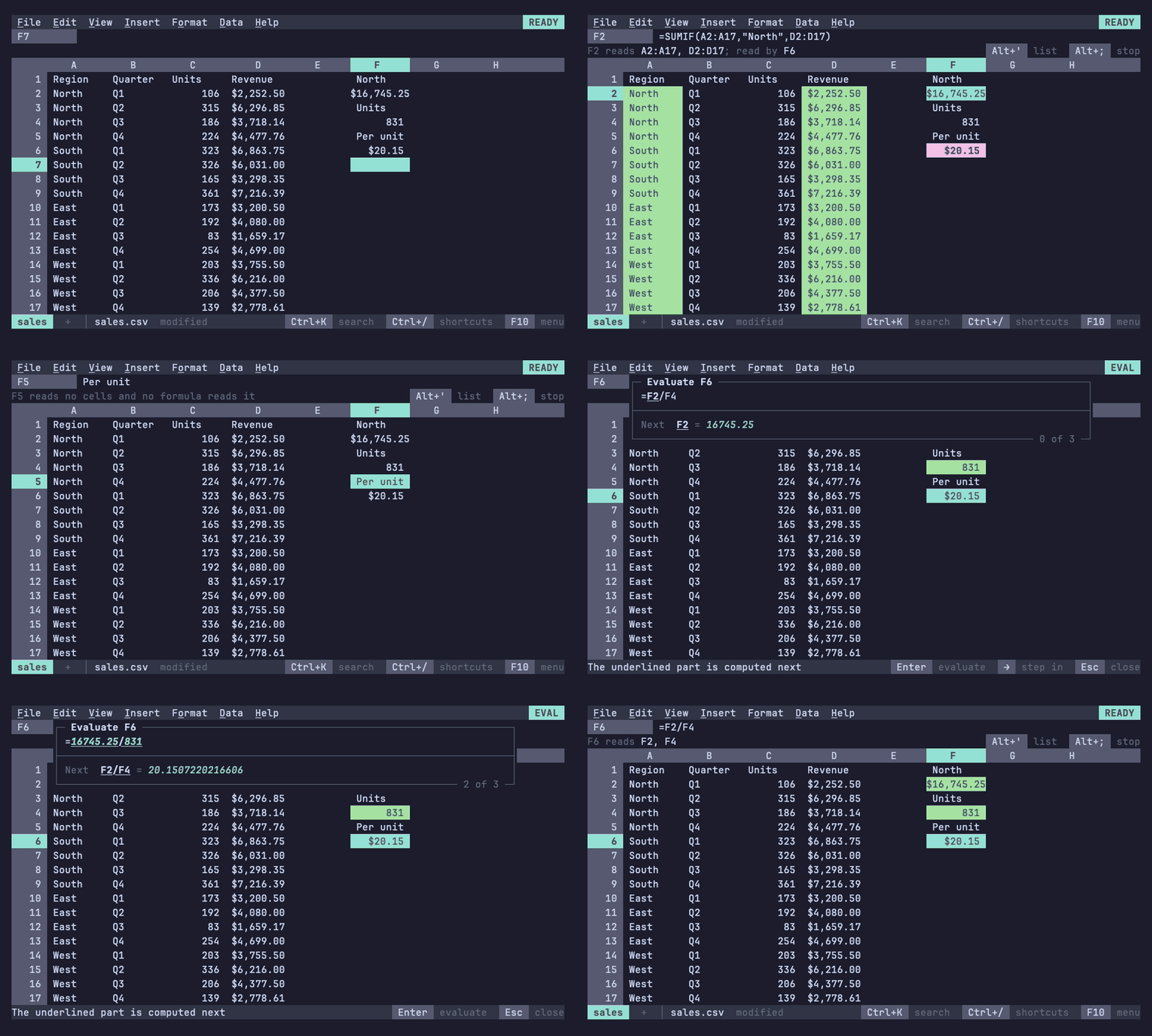
Showing precedents and dependents
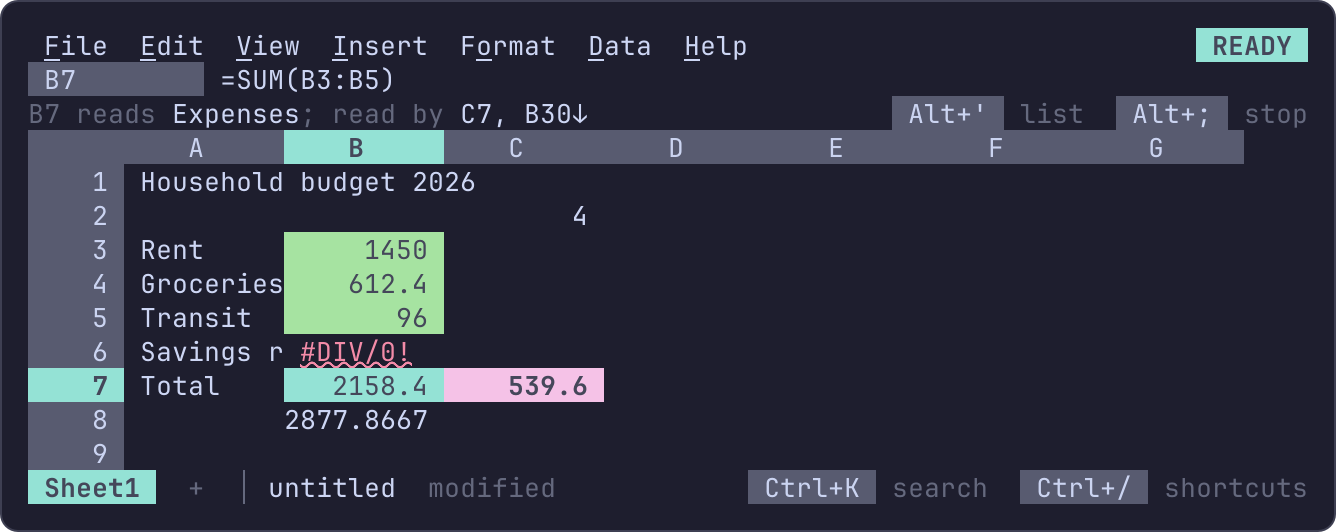
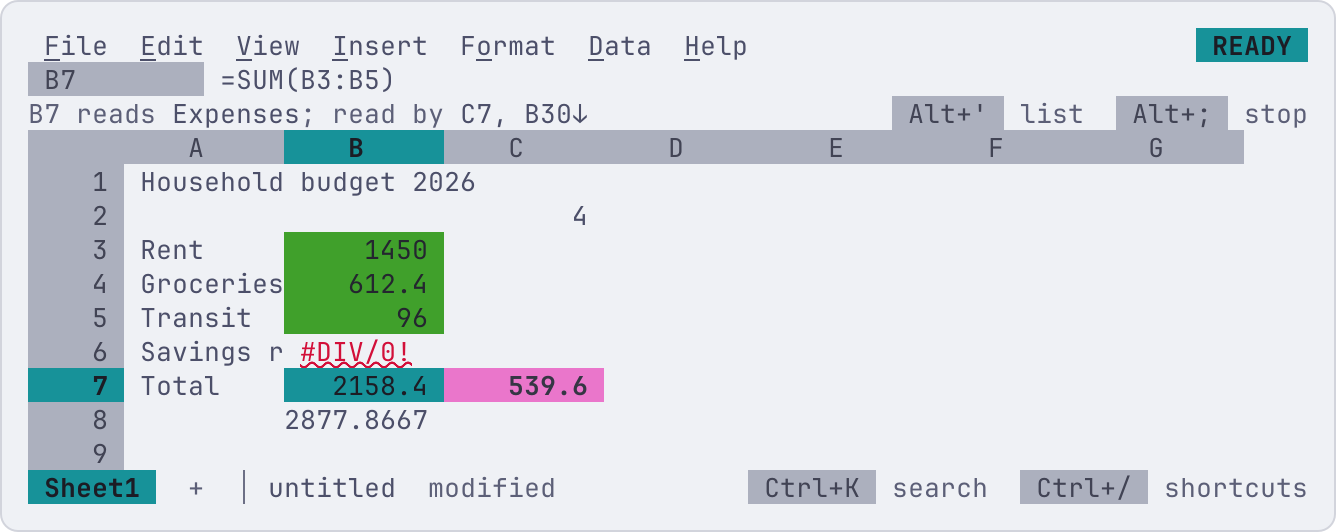
Data > Formula tracing > Show precedents and dependents (Alt+;) marks them in the grid as
the pointer moves: the cells the active cell's formula reads in green,
the formulas that read the active cell in magenta and bold. Without
color both are in reverse video, dependents bold as well. The context
line lists them all, those off screen with an arrow toward them and
those on other sheets with their sheet (C7 reads B3, Rate, Data!B2:B9; read by D7, A40↓, Summary!B2 +3 more):
Alt+; again stops. What counts as a link:
| The active cell | Its precedents | Its dependents |
|---|---|---|
| A formula | the cells and ranges it reads, on any sheet; a named range, a region (nu.sales) or a table's cells (Sales[Amount]) by its name |
the formulas that read it through a reference, a range, a named range, a table or a region's name, on any sheet |
| A formula whose array spills | as any formula | the cells it spills into, and the formulas reading any of them |
| A value an array spilled | the formula that spilled it | the formulas reading it |
| A cell of a linked file or of a notebook output sent to the sheet (regions) | the file, or the notebook cell | the formulas reading it, nu.name included |
Only direct links show; go to one and tracing shows its own, a level further. Excel draws arrows between cells; 012 marks the cells and lists the rest, which reads the same for a range on another sheet or far off screen.
Going to one
Data > Formula tracing > Go to a precedent or dependent (Alt+') lists
the active cell's precedents, then its dependents, with what each is
(precedent, named range B2:B9, dependent, on Summary). Type to narrow the
list; Enter goes to one, selecting a range, showing another sheet, or a
notebook's cell. A cell read by more than a thousand formulas lists the
first thousand.
Stepping through them
Alt+, and Alt+. step through the precedents and the dependents, as Excel's Ctrl+[ and Ctrl+], which terminals send as Esc: the first press marks them all and jumps to the first, each press after to the next, and Esc goes back to the cell traced. Cells on hidden sheets are skipped; when that leaves nothing, the context line names the hidden sheets ("Reads only Data, a hidden sheet; View > Hidden sheets shows it").
Evaluating a formula step by step
Data > Formula tracing > Evaluate formula (Alt+=), after Excel's Evaluate Formula, opens a box over the grid with the active cell's formula. The part computed next is underlined, and the line under it says what it computes:
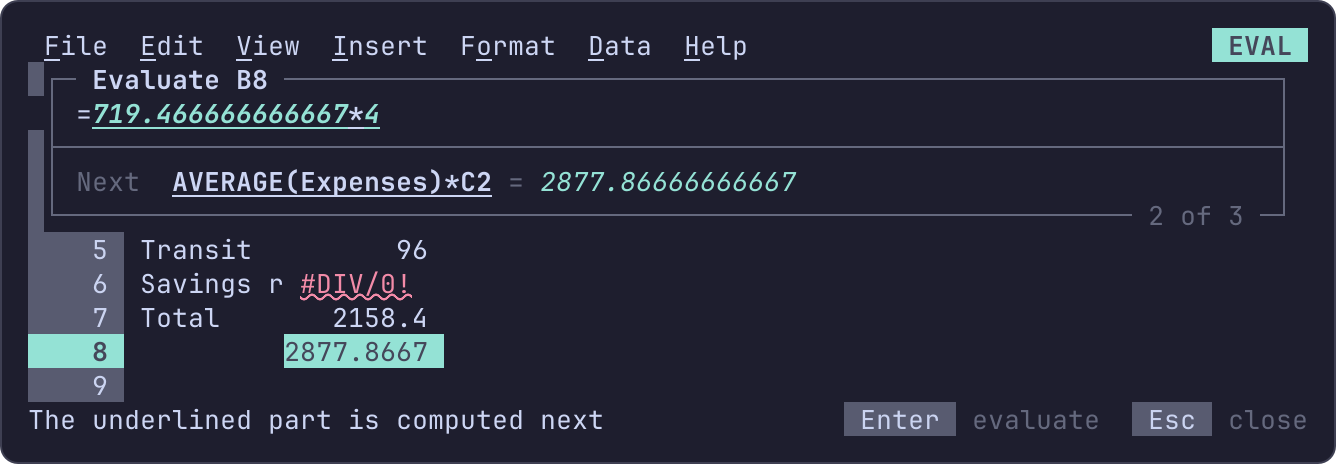
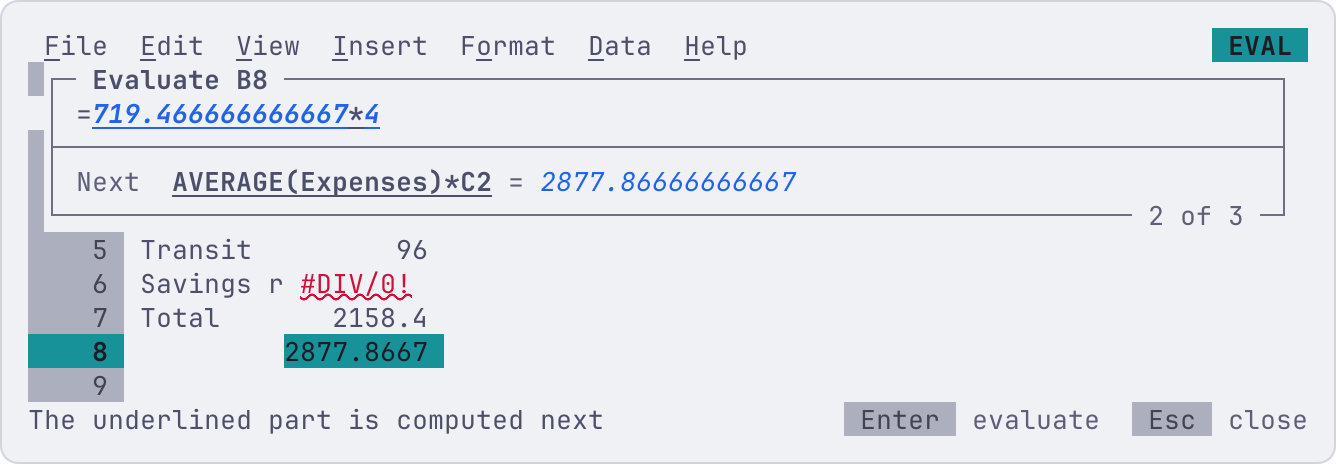
- Enter puts the value in its place, in italic, and underlines the next part, until the formula's value is all that's left; Enter then starts over.
- → steps into the underlined part when it's a reference to another
formula: the box shows that formula, and its title the way in
(
Evaluate D1 › B1). ← or Esc steps back out, the reference's value in its place. Esc at the first formula closes the box.
The values are what the formula computes where each part stands: an
array where the part is read as one (SUM(A1:A9*2) shows the doubled
column, {2;4;…}), names bound inside LET, and nothing for the branch
IF, IFERROR or CHOOSE didn't take, which stays as written. A blank
cell reads as 0. The formula is written in the
locale's syntax, spaced as 012 stores it.