title: "Tables" sidebar_position: 13
Tables
A table is a named range whose first row names its columns, as in
Sheets' and Excel's tables. Formulas read it by those names,
=SUM(Sales[Amount]), so they keep reading the right cells as the table
grows and its columns move (Structured references).
Making one
Format > Convert to table (Ctrl+Alt+T) makes a table of the selection, or
of the data around the active cell, and asks for its name on the context
line (Table1 to start). A name follows a named range's rules, letters,
digits, _ and ., except that Table1 is fine: only names Excel reads
as a cell are refused. Tables, named ranges and
notebook outputs share one set of
names, so a table can't take a name one of them has.
The first row is the header row: each cell's text is its column's name.
A blank header is named after its place (Column3) and a repeat
numbered (Amount2), in the cell too, so the header shows what formulas
use. A selection of one row gains an empty row of data below it.
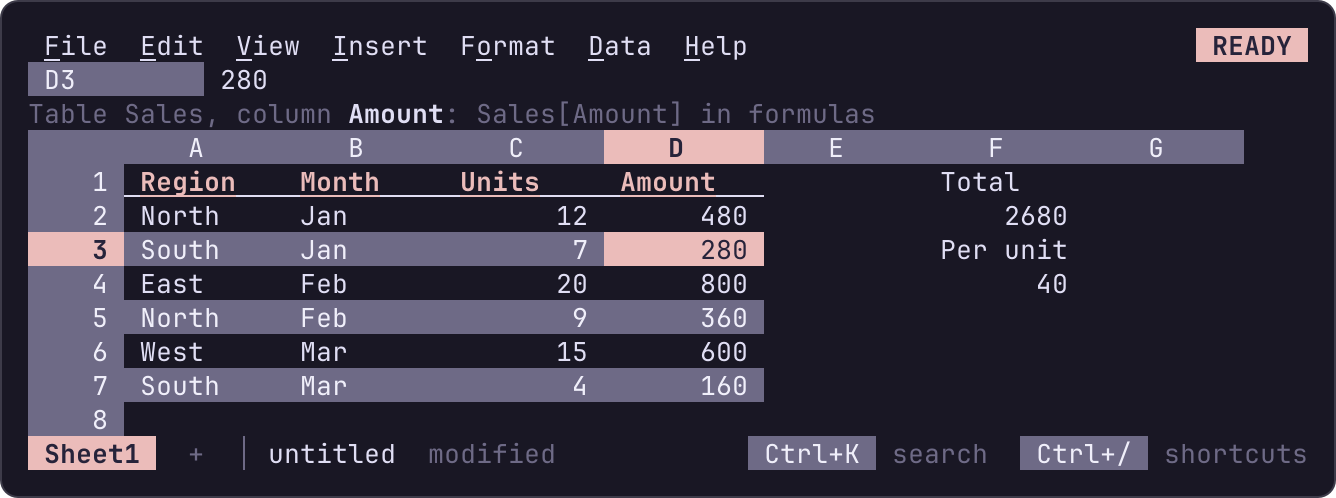
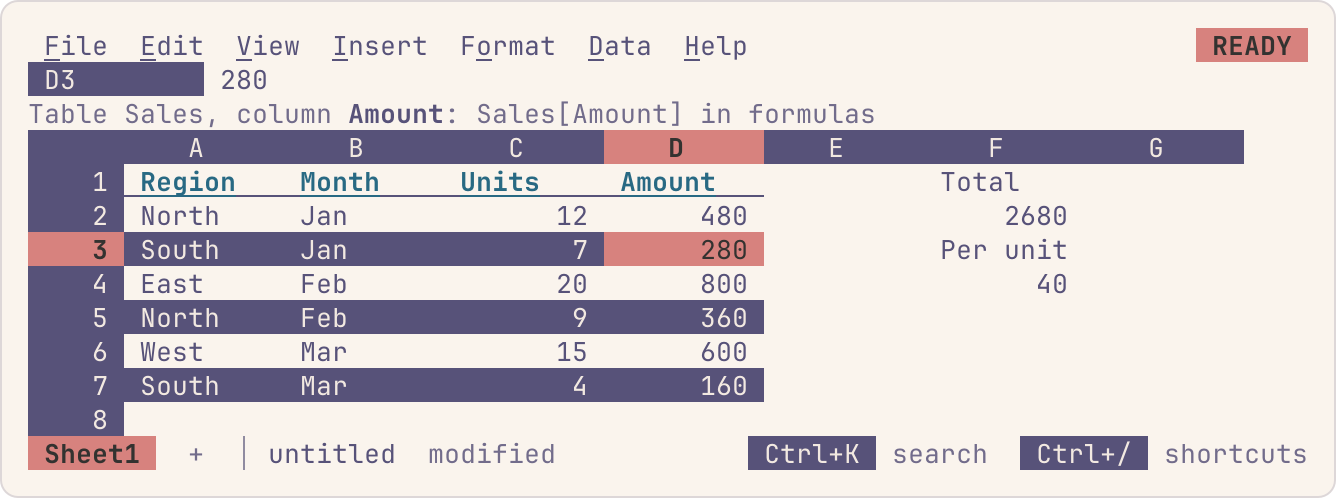
The table above is A1:D7, named Sales: Sales[Amount] reads D2:D7
and Sales[#All] reads A1:D7, and a value typed in row 8 joins it. On
a table's cell the context line names the table and the column, and
how a formula reads it: Table Sales, column Amount: Sales[Amount] in formulas.
Growing, resizing and removing
A table grows by the rows typed or pasted just below it, in the same undo step as the entry, so Ctrl+Z takes the row back out. It grows by rows only: a column added at its right joins it through Data > Table > Resize table, which asks for the new range, pointed at from the table's own, header row first.
Rows and columns inserted inside a table widen it, and deleting some
narrows it; a column inserted comes in named from its (blank) header,
Column2. Deleting a table's header row removes the table. Cutting the
whole table and pasting it elsewhere, on this sheet or another, moves
it.
Changing a header renames the column in every formula that reads it:
typing Revenue over Amount turns Sales[Amount] into
Sales[Revenue]. Columns moved, inserted or deleted rename nothing;
formulas reading a deleted column show #REF!.
Data > Table > Rename table renames the table and every formula that
reads it. Data > Table > Remove table makes it plain cells again: the
cells stay, and formulas that read it read the same cells by address
(Sales[Amount] becomes $C$2:$C$4, Sales[@Amount] the cell in the
formula's own row, $C3). Data > Table > Tables lists every table and
notebook output: Enter goes to one, F2 renames it and Ctrl+D removes it.
Banding and the header style
Data > Table > Banded rows shades every other data row, and Header style
draws the header row bold, underlined and in the theme's accent. A new
table has its header styled and no bands: Sheets bands its tables, but
the terminal's own palette has no shade subtle enough for every other
row, so bands are there when you want them. They are the TableBand and TableHeader roles of the
theme: a scheme draws the band a shade off its
background. The header's bold and underline read without color
(UX); the band is
decoration only.
Sorting and filtering a table
Sorting or filtering with the active cell in a table takes the table's range, its header row kept in place: Data > Sort range sorts its rows by the active column, and Data > Create a filter puts the filter on it. A filter on a table's range follows the table as it grows or is resized.
Notebook outputs and linked files
A notebook cell's output sent to a sheet, and a linked file, is a table
by the region's name, with no table of its own to make: app[status]
reads the status column of the output of the cell app, and app
alone its rows under the header. nu.app stays what it was, the whole
table header row included, the same cells as app[#All]. Its source
names and shapes it, so the table commands leave it alone, and a table
can't take its name (Notebooks).
Where 012 differs from Sheets and Excel
- Copying, pasting and filling keep structured references as written:
they name columns, not positions. Excel shifts
[Amount]to the next column when a formula is filled right. - A table has no totals row and no calculated columns: a formula typed in a table's column isn't filled down the column for you. An Excel table's totals row comes in as cells below the table (Excel files).
- A structured reference names its table,
Sales[@Amount], even inside it; Excel's[@Amount]alone isn't read. [@Amount]outside the table's data rows is#REF!, where Excel gives#VALUE!.