title: "Conditional formatting and data validation" sidebar_position: 7
Conditional formatting and data validation
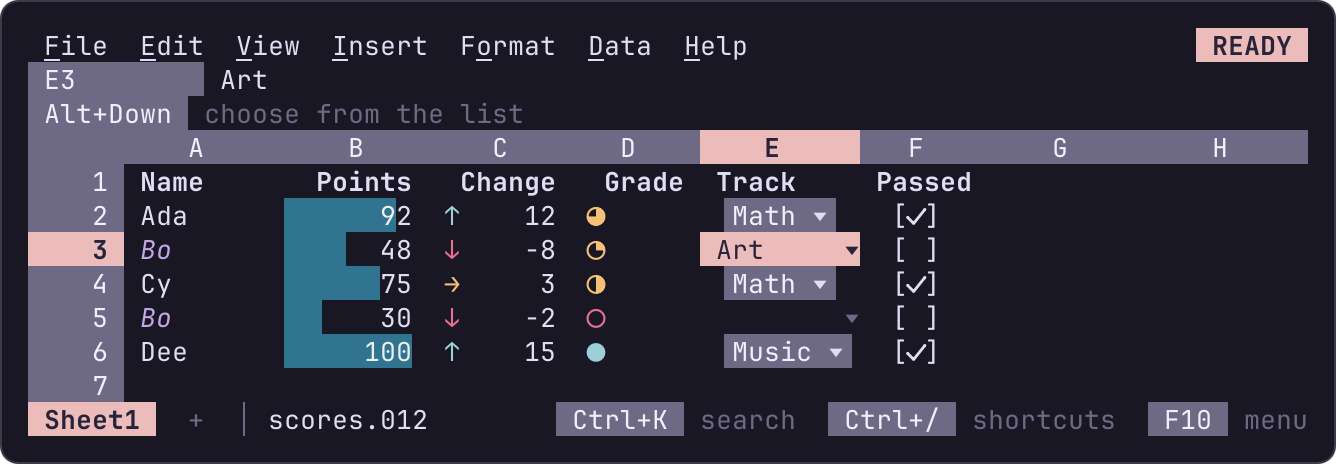
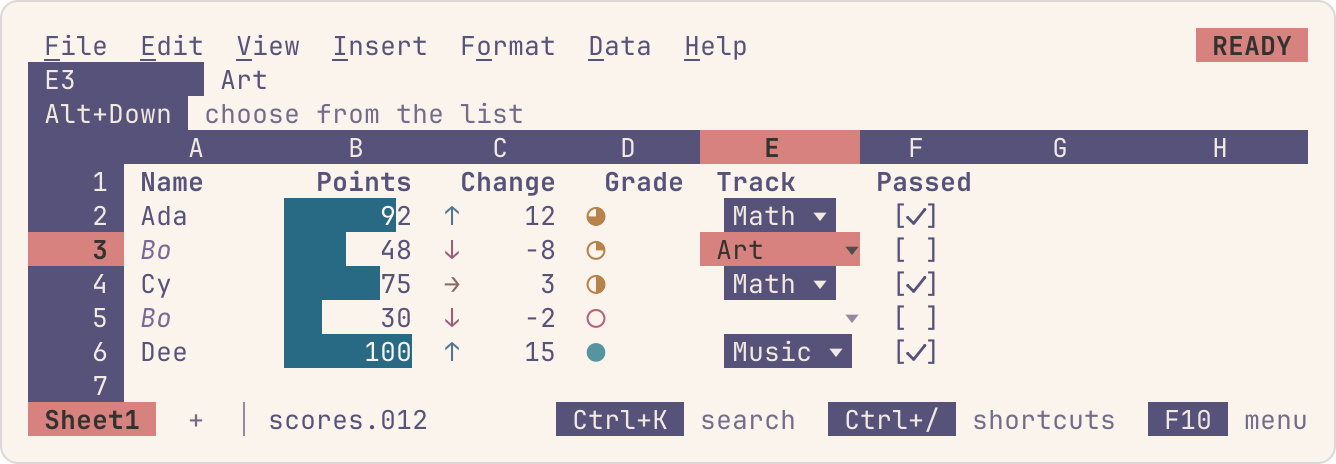
Rules make cells show and check what they hold, as Sheets' do. Conditional formatting colors a cell by its value, or draws a bar or an icon in it; data validation limits what a cell takes, and gives it a dropdown or a checkbox. Both only change how cells look and what they accept, never a value already there.
Conditional formatting
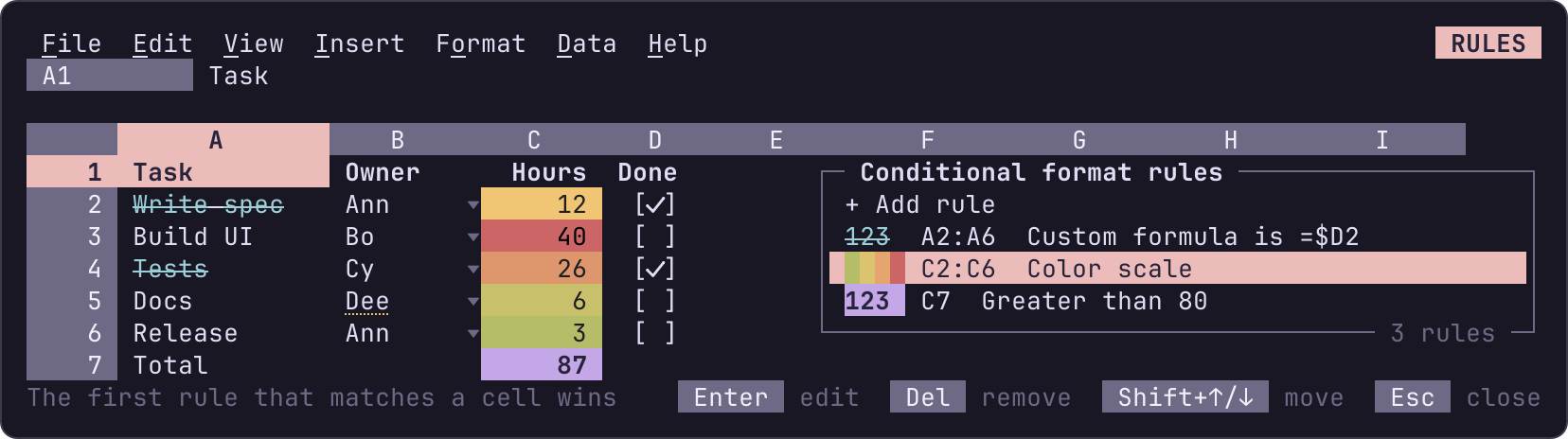
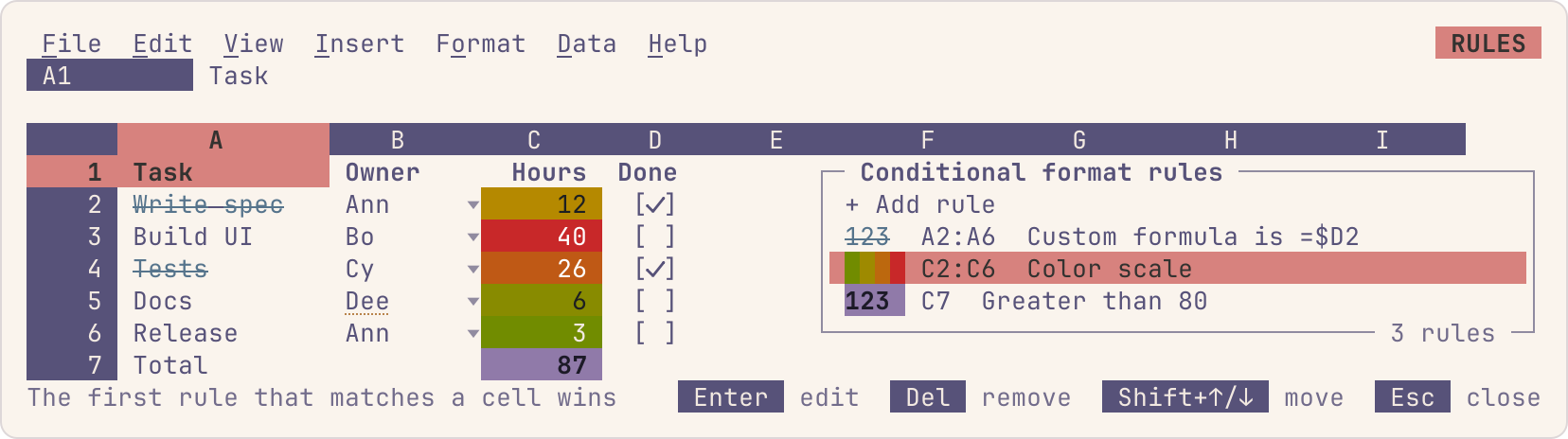
Select the cells, then Format > Conditional formatting. The sheet's rules open in a panel at the right of the grid, as Sheets' sidebar:
- Add a rule:
+ Add rulemakes one over the selection and opens its form. Up and Down pick a line, Left and Right change a choice, Space flips a check, text lines are typed into; Enter saves and Esc goes back without saving. - Change one: Enter edits the highlighted rule, Del removes it, and Shift+Up and Shift+Down move it up or down the list.
- Take cells out of every rule: Format > Clear conditional formats on the selection.
Every change is an undo step. A rule applies to ranges (A2:A100, or
several: A2:A9,C2:C9), and is one of four kinds:
| Rule | Does | Shows |
|---|---|---|
| Single color | Formats the cells that meet a condition | A text color, a fill, and bold, italic, underline or strikethrough |
| Color scale | Shades every number from its lowest point to its highest | A fill along two or three colors |
| Data bar | Draws a bar across every number, as long as the number is far from the shortest point to the longest | A bar in one of the named colors; the text over it in reverse video. Show bar only hides the numbers |
| Icon set | Puts an icon at the left of every number by the thresholds it reaches | Arrows (3, 4 or 5), circles filling up (3, 4 or 5), symbols (3) or rating bars (4 or 5), the lowest red, the highest green, those between yellow (rating bars blue). Reverse icons turns them around; Show icon only hides the numbers |
Data bars and icons are characters (eighth blocks, arrows, circles), so they read without color as they do in it.
Conditions
A single-color rule formats the cells that meet its condition; a value
in it may be a formula (=B2).
| Condition | A cell meets it when |
|---|---|
| Is empty, is not empty | It's blank, or not |
| Text contains, does not contain, starts with, ends with, is exactly | Its text does, ignoring case |
| Date is, is before, is after | Its date is, is before or is after a date or a period |
| Greater than, greater than or equal to, less than, less than or equal to, is equal to, is not equal to, is between, is not between | Its number compares so |
| Custom formula is | The formula is TRUE for it |
| Top values, bottom values | It's among the highest or lowest 1 to 1000 of the rule's cells, ties included |
| Top percent, bottom percent | It's in the highest or lowest percent of them |
| Above average, below average | It's above or below their average |
| Duplicate values, unique values | Another of them holds the same (text ignoring case), or none does |
The last four rows are Excel's, and compare a cell with the rest of the
rule's cells; the others are Sheets'. A custom formula (=$C2>100) is
written for the first cell of the first range: its relative references
move with each cell, as a copied formula's would.
Dates and periods
A date condition takes a date, or a period as Sheets and Excel name them: today, tomorrow, yesterday, the past week, month or year, and this, last or next week, month or year (weeks run Sunday to Saturday). A date is in a period, before its first day or after its last.
Points
A color scale runs from a minimum to a maximum, with an optional midpoint, and a data bar from its shortest point to its longest. Each point is the lowest or highest value, a number, a percent of the way between them, or a percentile. A data bar's automatic points run from zero (or the lowest number, when that's below zero) to the highest. An icon set's thresholds are each a percent of the way from lowest to highest, a number or a percentile.
Which rule wins, and colors
Rules are tried in order, and the first that applies to a cell formats it, so a rule higher in the list wins. The pointer and the selection draw over a rule's colors; its text styles show through them.
Colors are named (red, yellow, green, cyan, blue, magenta) rather than picked from a color wheel, because each is one of the terminal's 16 ANSI colors: the terminal's palette or the color scheme (Themes) decides what they look like, and a fill's text is drawn in whichever of black or white reads on it. A text color that wouldn't read on a rule's fill takes the fill's ink instead. Color scales blend the scheme's colors (or the terminal's, as it reports them) and pick readable text for each shade.
Rules only change how cells look, so they may go on a pivot table's results. They follow inserted and deleted rows and columns, and a rule whose cells are all deleted goes.
Data validation
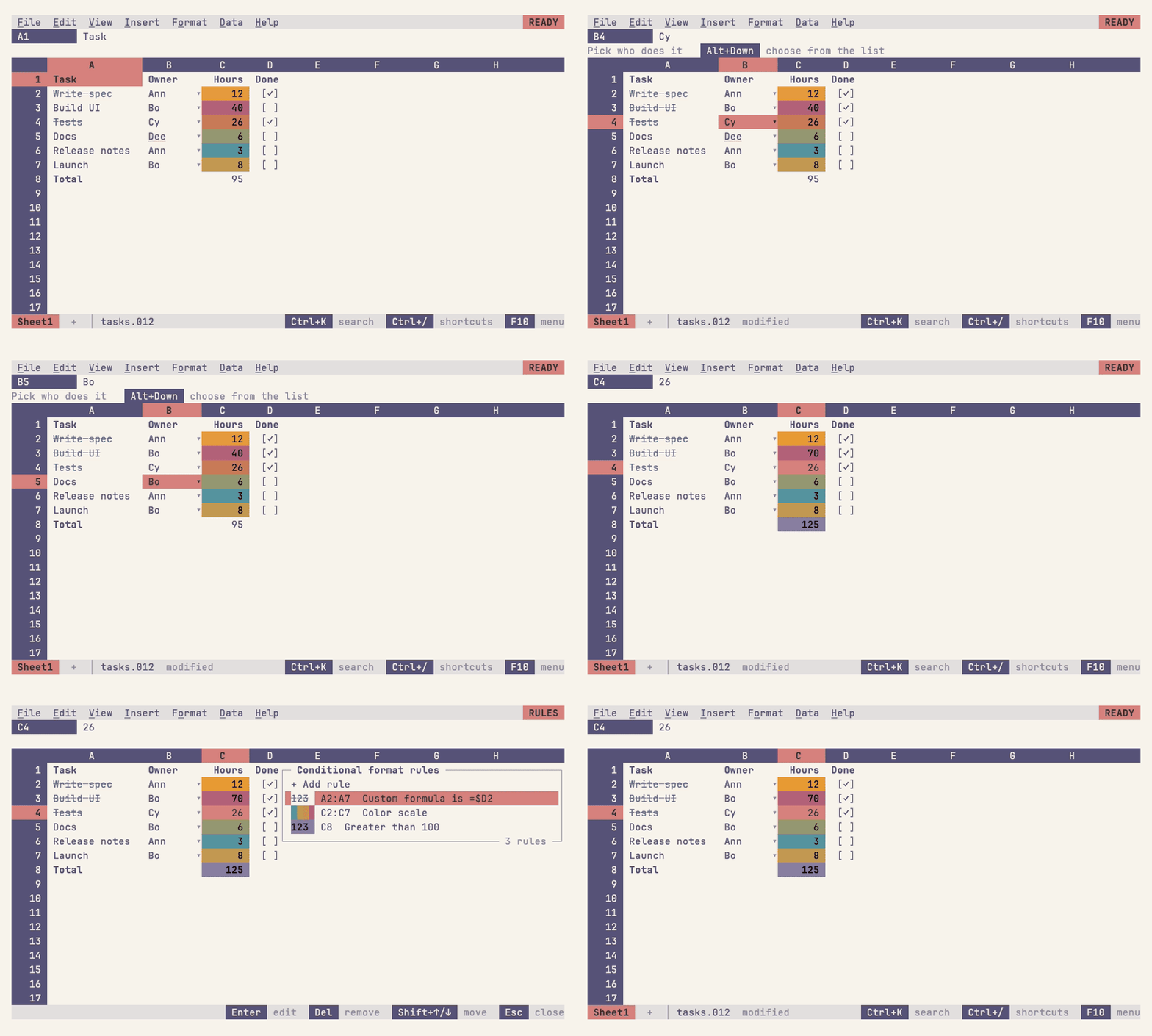
Select the cells, then Data > Data validation: the sheet's validation rules open in the same panel, and work as conditional formats' do. Insert > Dropdown opens it with a dropdown for the selection, and Insert > Checkbox makes the selection checkboxes at once.
| Criteria | Cells may hold | Shows |
|---|---|---|
| Dropdown | One of the items typed (Yes, No, Maybe), ignoring case |
The value on a chip, or ▾ at the right of the cell |
| Dropdown (from a range) | One of the values in a range, on any sheet (Lists!A1:A20) |
A chip, or ▾ |
| Checkbox | TRUE or FALSE, or values of its own (Yes and No); a blank cell is unchecked |
[✓] or [ ], centered |
| Number | A number between, not between, equal to, greater than ... values | |
| Date | Any date, or one on, after, before, between ... dates | |
| Text length | Text whose length is between, less than ... | |
| Custom formula is | Anything for which the formula (=B2<=C2) is TRUE |
Blanks are always valid, and a formula is checked by the value it computes. Each cell has one rule: a rule added over cells that had another takes them from it. Validation can't go on a pivot table's results, which take no entries. Data > Remove data validation takes the selection out of every rule.
Dropdowns and checkboxes
- Pick an item: Alt+Down, or a click on the ▾, opens a dropdown's list under the cell; type to search, and Enter enters the item as if typed. When the active cell has no dropdown, Alt+Down opens the column's filter.
- Check a box: Space, or a click on the box, checks or unchecks the selected checkboxes (all checked when the active one isn't, as in Sheets); Space anywhere else starts an entry as usual.
A dropdown's Display is Sheets' too: Chip draws its value between rounded ends in reverse video, with the ▾ inside (new dropdowns), Arrow draws the ▾ at the cell's right, and Plain text neither. A checkbox's Checked and Unchecked values, when set, are what checking and unchecking enter instead of TRUE and FALSE; with only a checked value, unchecking leaves the cell blank.
Rejected or warned
Each rule either rejects an invalid entry or shows a warning. Rejected, the entry stays open with Sheets' message on the context line ("Invalid entry in C2: Input must be a number between 0 and 80"), for fixing or Esc. Warned, it goes in, and the cell's text gets a dotted underline; on the active cell the context line says why ("Invalid: Input must be ..."). A rule's help text, when it has one, replaces its own words there.
What validation checks:
- Typing, a dropdown's pick and macros' entries, as they're entered, rejected or warned as above.
- Pastes and fills (Ctrl+V, paste values, text pasted from another program; Ctrl+D, Ctrl+R, Ctrl+Enter, the fill handle), after they're written, as in Sheets. When a cell's rule rejects what landed there, the whole paste or fill is undone and ERROR mode says which cell and why ("Paste undone: Invalid entry in B2: ..."); Ctrl+Enter keeps the entry open instead. When only rules that warn fail, it stays, the cells are marked, and the context line says how many ("2 cells invalid, first B2: ...").
- Macros' pastes and fills (
paste_text,fill,enterwithfill=True, and the paste and fill commands), the same way: a refused one is undone and stops the macro with the reason; what the macro did before it stays, and undoes with the rest of the macro as one step. - Imports aren't checked; what they leave invalid is marked.
Adding a checkbox or a dropdown changes no cells, so on a protected range it doesn't ask first (on a protected sheet it does); checking a box or picking an item asks as typing does (protection).
Moving cells
Conditional formats and validation rules move with cut and paste, as
in Sheets: the cut cells take their rules to where they land, on their
sheet or another, and the cells they land on lose theirs. A rule whose
cells partly move keeps both parts; with a custom formula it becomes
two rules, each with the formula written for its own first cell, so the
cells that stayed read what they read and the moved ones read the cells
beside their new places. Formulas in rules follow cells that move, and
a rule taken to another sheet names the sheet it came from for the
cells it still reads there (=Sheet1!$B2>0).