title: "Formatting" sidebar_position: 3
Formatting
Formats change how values show, never what they are. Select cells,
whole columns or rows, then pick a format from the Format menu, a key
(keys) or the palette. Entries such as
$1,200, 12% or 9/ take their format as you type them
(formulas).
Number formats
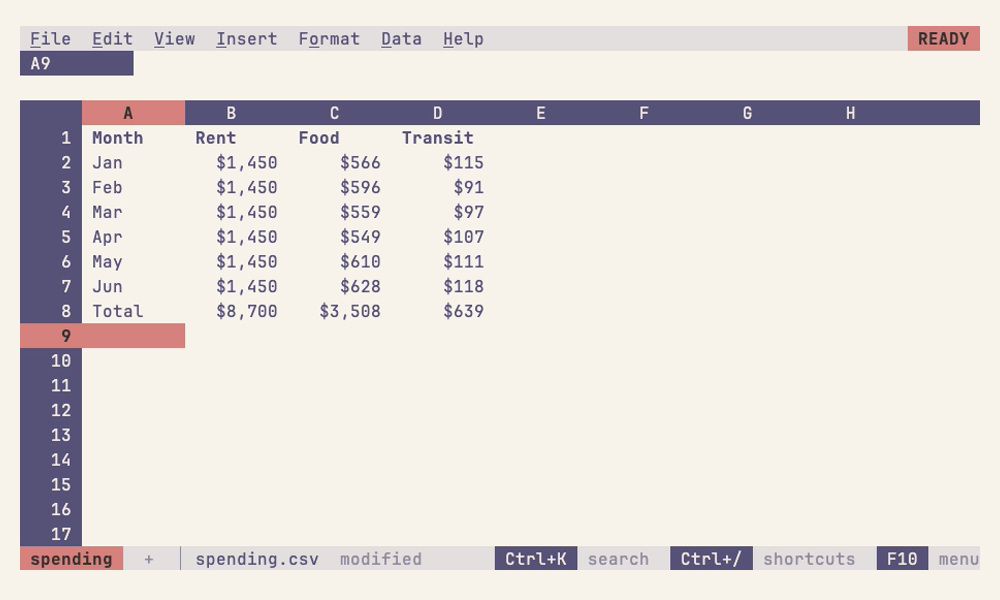
Format > Number, as Sheets names them:
| Format | Shows |
|---|---|
| Automatic | Numbers as typed, or as formulas infer from what they read |
| Plain text | Entries exactly as typed, even numbers and formulas |
| Number | Thousands separators: 1,000.12 |
| Percent | 10.12% |
| Scientific | 1.01E+03 |
| Accounting | $ at the left, negatives in parentheses: $ (1,000.12) |
| Financial | Negatives in parentheses: (1,000.12) |
| Currency | $1,000.12 |
| Currency rounded | $1,000 |
| Date | 9/26/2026 |
| Time | 3:59:00 PM |
| Date time | 9/26/2026 15:59:00 |
| Duration | Elapsed hours, minutes and seconds: 24:01:00 |
| Size | A count of bytes, as nushell shows file sizes: 1.6 kB |
Format > Increase decimal places and Format > Decrease decimal places show one more or one less.
Size isn't one of Sheets' formats; it's what a
nushell table's sizes come in as. It shows
whole bytes below 1000 (512 B), and above that the number in the
largest unit that keeps it under 1000 once rounded, units a thousand
apart: kB, MB, GB, TB, PB and EB, with one decimal place until you
change it (1.6 kB, 999,999 as 1.0 MB). Sheets would write the
first three units as the custom format
[<1000]0" B";[<1000000]0.0," kB";0.0,," MB", which is what an Excel
download keeps, and what reads back as Size.
A formula left Automatic shows the format of what it reads
(building formulas).
Text
Bold, italic, underline and strikethrough, and Format > Alignment's left, center or right. Numbers align right, text left, booleans and errors center, as in Sheets, until you align them yourself. Format > Clear formatting resets number formats and text styles and keeps the contents.
Vertical alignment
Format > Alignment's Top, Middle and Bottom say where a value sits in a row taller than it, as in Sheets: on the row's first line, its middle one or its last. Wrapped text starts there, so it fills the row from the top, around the middle, or up to the bottom. Until you choose, values sit at the bottom, as Sheets aligns them, and a merged cell's in its middle.
Wrapping
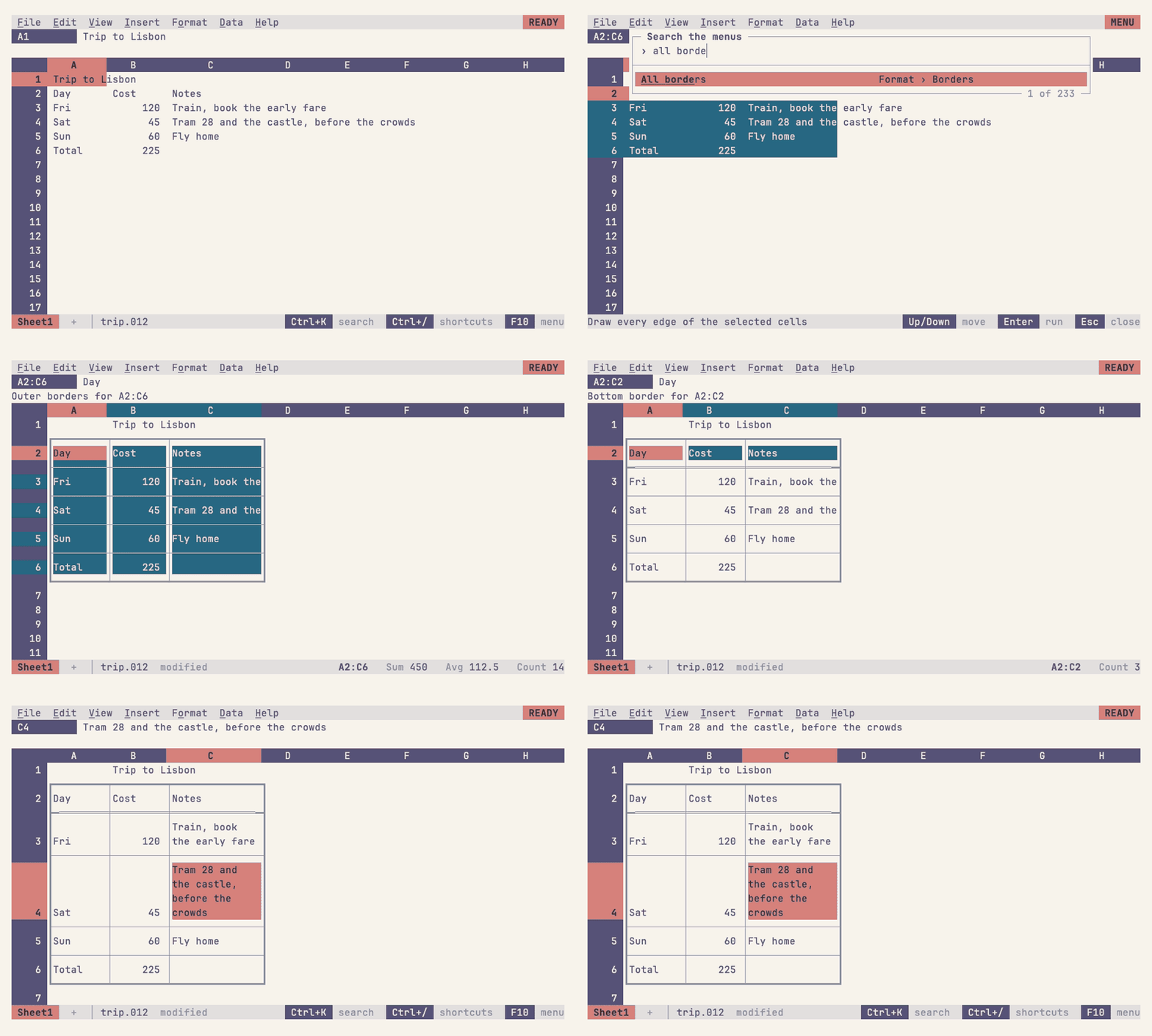
Format > Wrapping says what text wider than its column does, as in Sheets:
| Wrapping | Text |
|---|---|
| Overflow | Runs on into the blank cells beside it (the default) |
| Wrap | Breaks into lines that fit the column, at spaces where it can; the row grows to fit them |
| Clip | Is cut off at the cell's edge |
Values sit on the last line of a tall row, as Sheets aligns them to the bottom, unless aligned otherwise, and the row's number is on that line, so a tall row ends on the line that numbers it. Text doesn't run on across a border or into merged cells.
Row heights
A row is as tall as the text it wraps, up to 50 lines, unless it has a
height of its own: Format > Row height (1 to 50 lines, with a live
preview as Left and Right change it), or drag the bottom-right corner of
the row's number, where ▄ shows on hover. Format > Fit rows to data,
or double-clicking that corner, has rows fit their contents again.
Heights follow inserted and deleted rows and travel with whole rows
copied, cut or moved.
Borders
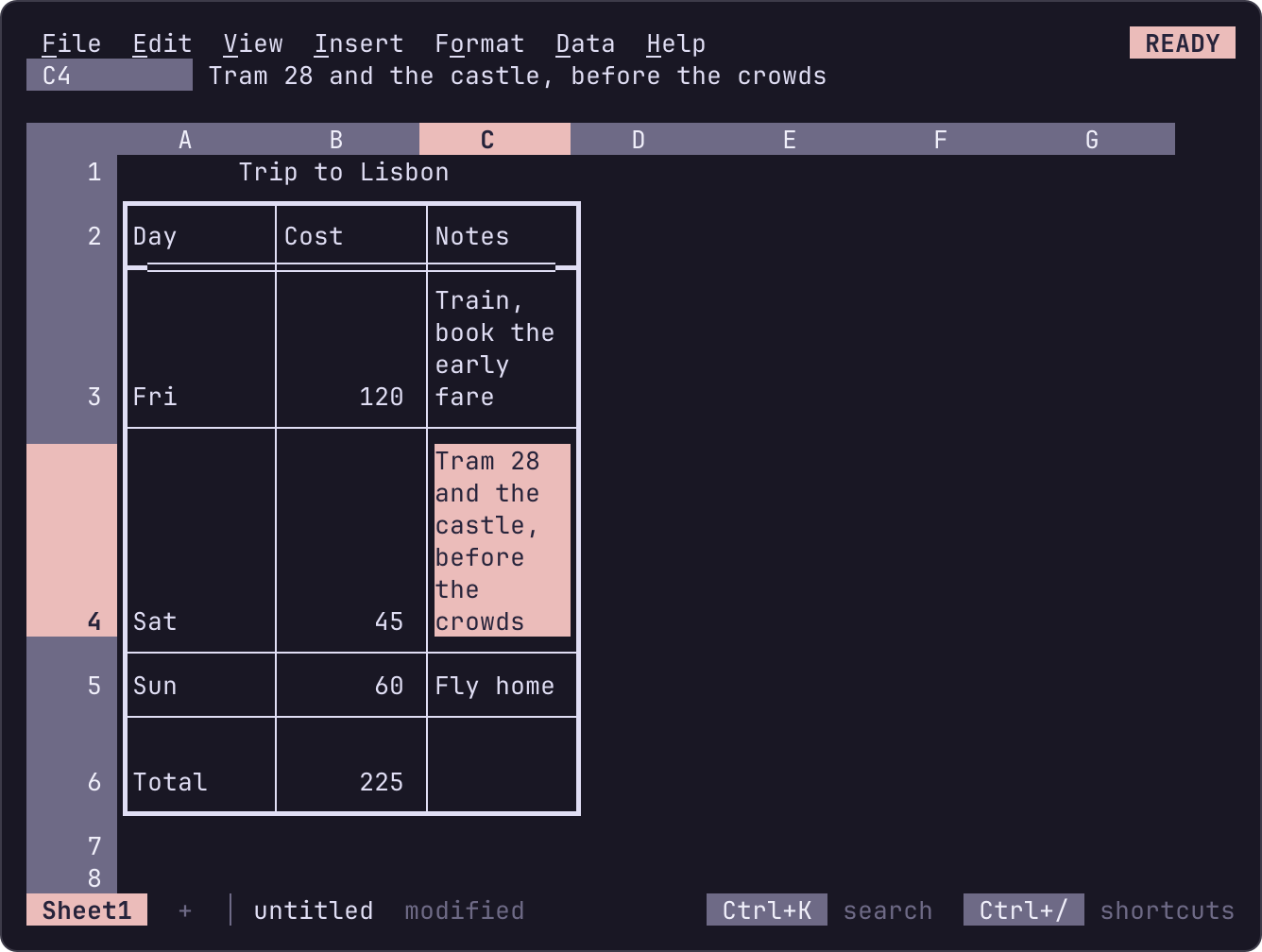
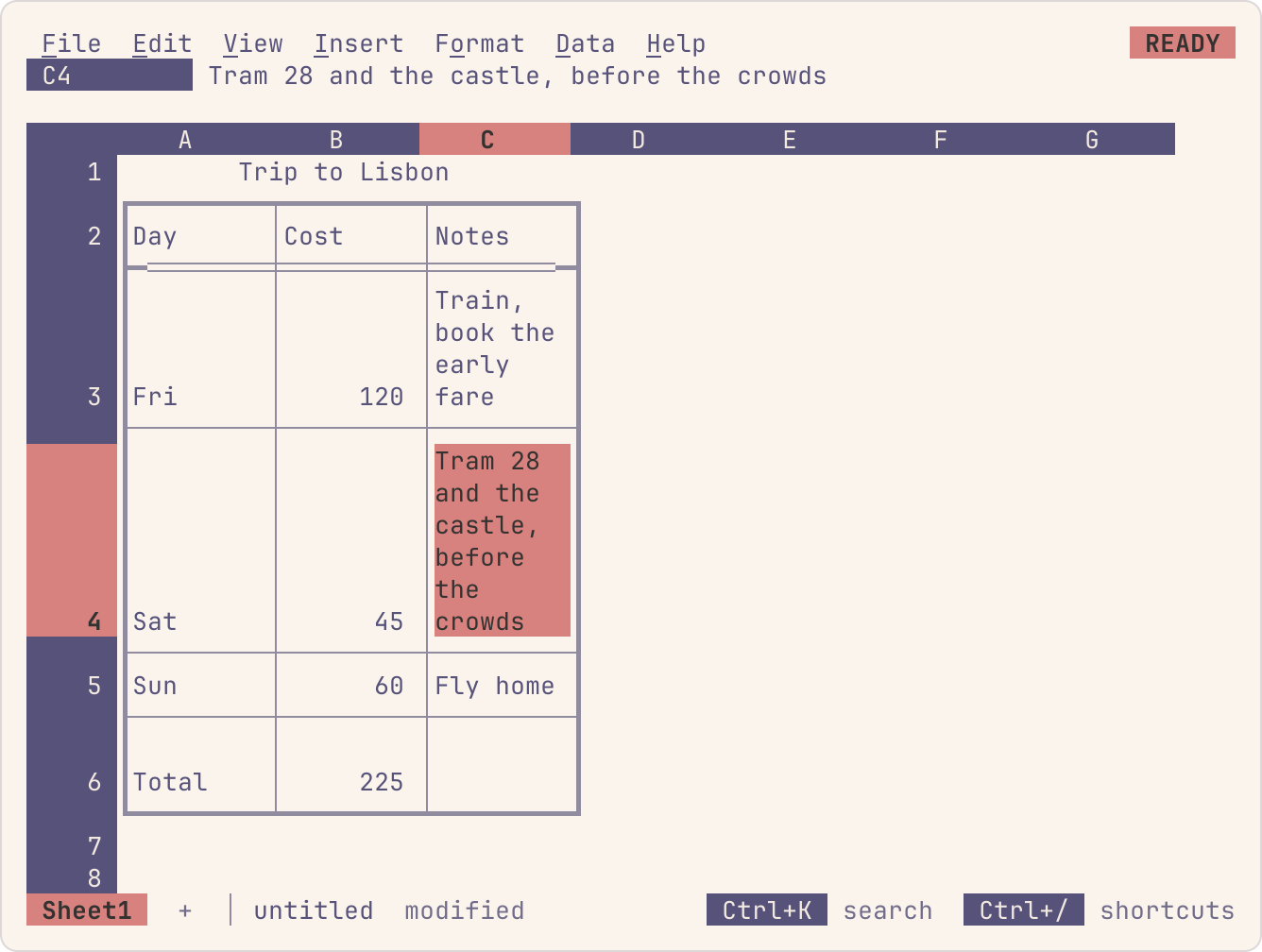
Select the cells, then Format > Borders:
- All, Outer (the outline) or Inner (the lines between the cells) draws those edges; Top, Bottom, Left and Right one side; None removes them.
- Thin lines, Thick lines and Double lines pick the line the next border is drawn with, thin until you pick, as Sheets' border style keeps its choice.
- Alt+Shift+1 to 4 draw the top, right, bottom and left border, Alt+Shift+7 the outline and Alt+Shift+6 clears them (keys).
Where two cells share an edge, the heavier line shows, and drawing an edge again from one side replaces the other side's line. Borders are part of a cell's formatting: they fall back on rows and columns, travel with copies and go with Clear formatting. The outline of whole columns or rows runs along the sheet's own edges too: over row 1 and under the last row, or down column A and the last column.
The grid draws borders with box-drawing characters, which terminals join where lines meet. A line down the side of a cell takes the first column of the cell to its right, which is padding anyway. A terminal has no thinner line between two rows of characters, so a line along the top of a row takes a line of the screen above it, as tables printed in a terminal do: a bordered table is taller than a plain one. Unicode has no joint where a double line meets a thick one, so there the joint is drawn thick, and the double line starts beside it.
Border colors
Format > Borders > Border color picks the color borders draw with from here on, as the line style is kept: Automatic draws them in the text's color, as Sheets draws borders black, or red, yellow, green, cyan, blue or magenta, the terminal's own colors as conditional formats use them, so the palette or the color scheme decides how they look. Where lines of two colors meet, the heavier line's color shows, and a line's color goes with it.
Merged cells
Format > Merge cells joins the selection into one cell (Merge all), or each of its rows or columns into one (Merge horizontally, Merge vertically). A merged cell shows its top-left cell's value centered across it, unless that cell is aligned, and draws no lines inside. Merging clears the values of the other cells, as Sheets does, so when any would be lost it asks first: Enter merges, Esc backs out, and undo brings them back. Unmerge splits merged cells back into cells.
Its value sits on the middle one of the lines its rows take on screen, counting rows of any height and the border lines between them, unless its top-left cell is aligned to the top or bottom.
The active cell moves onto a merged cell's top-left and steps off it from its edges, along the row or column it came in by, as in Sheets: coming in from A2 into B1:C3, Right goes on to D2. Clicking any part of it selects it, typing edits it in an entry as wide as the merge, and a selection that touches it takes in all of it. Merges follow inserted and deleted lines, and a copy, cut or move carries the merges wholly inside it. Sorting a range that holds merged cells is refused, as is freezing rows or columns through one; an array can't spill over them, cells an array spills into or a pivot table's results can't be merged, and merging in a protected range asks first.
Whole columns and rows
Formatting whole columns or rows (select them with Ctrl+Space or Shift+Space, or click their headers) keeps the format on the column or row, as Sheets does, rather than on each of their million cells: every cell of it shows the format unless it has its own, and a cell typed into later takes it. A cell's format comes from the cell, else its row, else its column, else the whole sheet's (Ctrl+A twice, then a format); the number format and the text style fall back separately. Copies carry what cells show (editing).
Column widths
Drag a column header's right edge, or use Format > Column width (1 to 240 characters); double-clicking the edge fits the contents, and Format > Reset column width goes back to the default.
Conditional formats, which color cells by their values, are on their own page.